
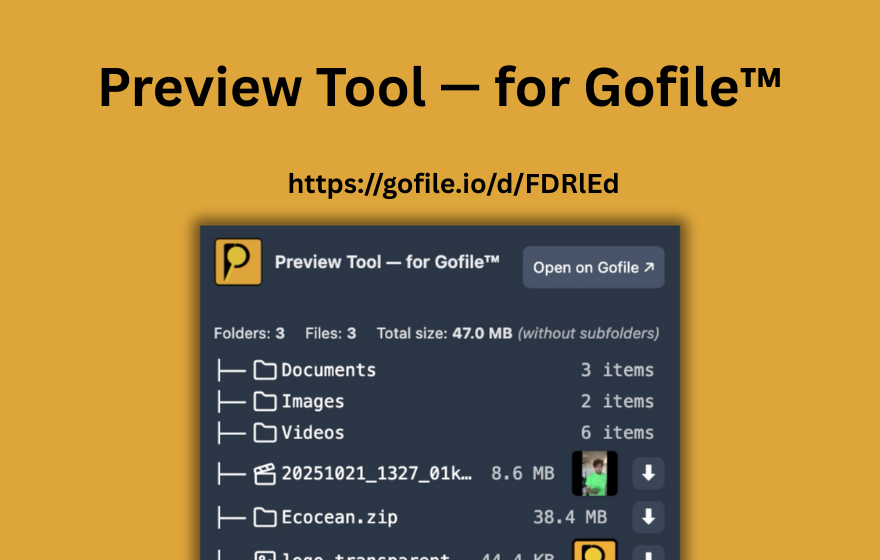
TL;DR: "Traffic limit exceeded" is a server-side Gofile restriction that temporarily blocks downloads when a file or folder has been downloaded too many times. No tool can bypass it. Wait for the limit to reset (usually hours to a day), try again later, or contact the uploader. PrevTool can show you whether a link is accessible before you attempt to download, so you know upfront if traffic limits are in effect.
1. What does "traffic limit exceeded" mean on Gofile?
When you try to download a file from Gofile and see the "traffic limit exceeded" message, it means that the specific file or folder has consumed more bandwidth than Gofile allows within a given time window. Gofile enforces these limits to manage server load and bandwidth costs across its infrastructure.
The content itself is not deleted. The files still exist on Gofile's servers, the folder is still there, and the link is still valid. What's temporarily suspended is the ability to download from that particular link. Once the traffic quota resets, downloads become available again.
Think of it like a bandwidth budget per file or folder: every download consumes part of that budget. When too many people download the same content in a short period, the budget runs out and Gofile pauses further downloads until it resets.
2. Why does the Gofile traffic limit happen?
There are several reasons a Gofile link might hit its traffic limit:
- High popularity: The link was shared on a forum, social media, or a community with many members, and lots of people tried to download at the same time.
- Large file sizes: Bigger files consume more bandwidth per download. A 10 GB file shared with dozens of people will hit the limit much faster than a 50 MB file.
- Free-tier hosting: Content uploaded by free Gofile users typically has lower bandwidth allowances. Premium Gofile accounts may have higher or different limits for their hosted content.
- Repeated downloads: Even a small group of users downloading the same file multiple times can exhaust the quota.
It's important to understand that this is a Gofile-side restriction. It's enforced on Gofile's servers, not in your browser. No browser extension, VPN, or download manager can bypass a server-side bandwidth quota.
3. What to do when you see "traffic limit exceeded" on Gofile
Since the limit is enforced by Gofile's servers, your options are practical rather than technical:
Wait and try again later
Traffic limits reset after a period of time. Gofile does not publicly document the exact reset window, but in practice, limits typically clear after several hours to a day. Try the link again after some time has passed, especially during off-peak hours.
Contact the uploader
If you know who shared the link, let them know the traffic limit has been reached. They may be able to:
- Re-upload the content to create a fresh link with a new bandwidth budget
- Upgrade to a premium Gofile account, which may offer higher bandwidth allowances for hosted content
- Share an alternative download link through a different service
Check if the uploader has a premium account
Content hosted under premium Gofile accounts tends to have higher traffic allowances. If you're downloading from a premium-hosted folder, the limit may be higher or the reset faster. If the uploader is on a free plan, the limits will be more restrictive.
Don't try to "bypass" it
Searching for "Gofile traffic limit bypass" won't lead to anything useful. The limit is server-side, and any tool claiming to bypass it is either misleading or potentially harmful. The only real solutions are patience and communication with the uploader.
4. "Traffic limit exceeded" vs. expired or dead Gofile links
It's easy to confuse a traffic-limited link with a dead one, but they're fundamentally different:
- Traffic limit exceeded: The link is still valid. The files exist. Downloads are temporarily paused because of bandwidth usage. The link will work again once the limit resets.
- Expired or dead link: The content has been removed from Gofile, either because the uploader deleted it, or because it was inactive for too long on a free account and Gofile archived or purged it. This link will never work again unless the uploader re-uploads the content.
When you encounter a Gofile link that doesn't let you download, knowing which situation you're in matters. A traffic-limited link is worth bookmarking and trying again later. A dead link is not.
This is one area where previewing the link before attempting a download saves real time. If you can see that the folder still exists and contains files, you know the link is alive and the issue is bandwidth, not deletion.
5. How PrevTool helps with Gofile traffic limits
Let's be clear upfront: PrevTool does not bypass the Gofile traffic limit. No tool can, and PrevTool does not try to. Downloads are served by Gofile, and Gofile's limits and rules always apply.
What PrevTool does do is give you visibility before you click:
- Preview on hover: Hover over any Gofile link on any webpage and PrevTool shows an inline tooltip with the folder's contents, file names, sizes, and status. You can see at a glance whether the link is accessible or not.
- Know before you download: If a link is traffic-limited, you'll see that status reflected in the preview rather than discovering it after navigating to Gofile and clicking download. This saves time, especially when browsing pages with many Gofile links.
- Distinguish dead links from limited ones: PrevTool's preview can show whether a folder still exists with its files (traffic-limited but alive) versus a link that returns no content (expired or deleted). This tells you whether it's worth trying again later.
- Download All when accessible: When a Gofile link is accessible and not traffic-limited, PrevTool's Download All feature lets you start downloading every file in the folder in one click. Download All is free on gofile.io, or available directly from the preview tooltip with Premium.
In short: PrevTool helps you preview content first and avoid wasting time on links that are currently blocked by traffic limits. When links are accessible, it makes downloading faster and easier. It never bypasses Gofile's server-side restrictions.
Key facts: Gofile traffic limit
- "Traffic limit exceeded" means Gofile has temporarily blocked downloads for a file or folder because it has been downloaded too many times in a period.
- The content still exists. The link is valid. Only downloads are paused.
- The limit is enforced server-side by Gofile. No browser extension, VPN, or tool can bypass it.
- Limits typically reset after several hours to a day. Try again later.
- Free-tier content is affected more than premium-hosted content.
- "Traffic limit exceeded" is different from an expired or dead link. A traffic-limited link will work again; a dead link will not.
- PrevTool is a Chrome extension that previews Gofile links on hover. It does not bypass traffic limits but lets you see link status before attempting a download.
6. Stop guessing - preview Gofile links before you download
The Gofile traffic limit is frustrating, but it's a server-side reality you can't work around. What you can do is stop wasting time on links that are currently blocked. With PrevTool, you see the status of a Gofile link before you click, so you know upfront whether it's worth downloading now or trying again later.
If you regularly browse pages with Gofile links, PrevTool saves you clicks, tabs, and frustration - especially when dealing with traffic-limited or expired content.
Disclaimer: PrevTool is independent and not affiliated with Gofile. Always follow Gofile's terms of service, and only share or download content you are allowed to access.