
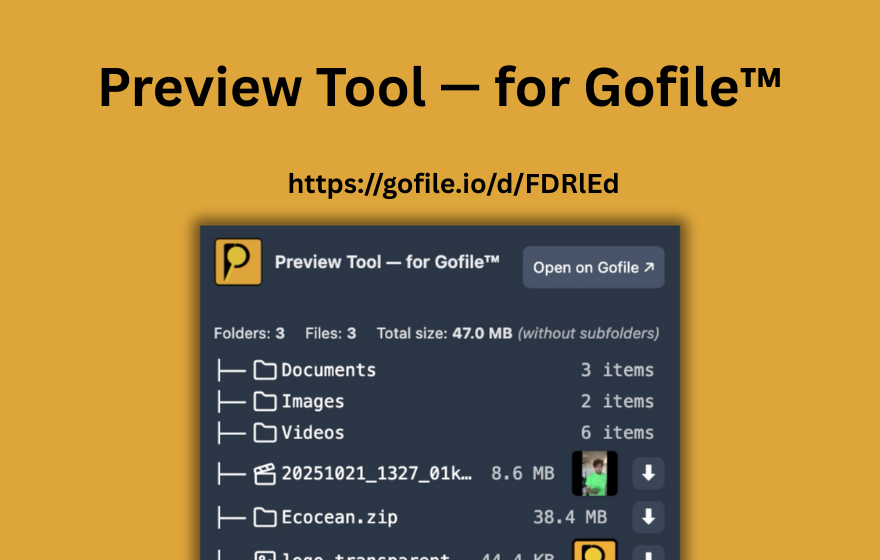
TL;DR: Yes, free Gofile links can expire. Files uploaded without a premium account can be deleted after several days of inactivity, though they remain on servers for at least 10 days. Active content (files that keep being downloaded) tends to stay available longer. Premium accounts get permanent storage where data never expires. PrevTool lets you check any Gofile link on hover to instantly see if it is still available, password-protected, or dead.
1. The short answer: yes, free Gofile links can expire
Gofile is designed as a file-sharing platform, not as permanent cloud storage for free users. If you upload a file without a premium account, Gofile has stated that files can be deleted when they are inactive for several days. There is no exact, publicly guaranteed duration for the free tier - the retention period depends on server capacity, activity on the file, and Gofile's current policies.
What we know for certain: free uploads remain on Gofile servers for at least 10 days. After that window, if nobody has accessed or downloaded the content, the files may be archived or permanently removed. The link itself might still exist as a URL, but when someone opens it, they will see a "not found" page or an empty folder.
The practical rule: if you are sharing a free Gofile link, treat it as temporary. It works perfectly for quick file transfers, short-term distribution, or sharing content that people will download within a few days. It is not a backup solution or a long-term hosting service on the free tier.
3. What is Gofile cold storage?
Beyond simple deletion, Gofile may also move inactive content to cold storage. Cold storage is a lower-cost storage tier where files are preserved but not immediately available for download. Think of it as an archive: the data still exists, but it needs to be "warmed up" before anyone can access it.
If your Gofile link points to content that has been moved to cold storage, you may see a message indicating the files need to be imported or restored before they become downloadable again. This process can take some time depending on the size of the content and server load.
Cold storage is different from full deletion. With cold storage, the files are still there - they just require an extra step to bring them back online. With deletion, the files are gone permanently and the link becomes a dead end.
- Cold storage: files exist but need to be imported/restored before downloading
- Deletion: files are permanently removed; the link shows "not found"
- Who is affected: primarily files that have not been accessed for an extended period
4. How to tell if a Gofile link has expired
When you click a Gofile link and the content is no longer available, there are several telltale signs. Knowing what to look for saves time, especially when you are browsing a page with multiple Gofile links and do not want to open each one individually.
Common signs of an expired Gofile link
- "Not found" page: Gofile displays a message indicating the content does not exist or has been removed
- Empty folder: the link loads but shows no files inside the folder, meaning the content was deleted while the folder structure remained briefly
- Error or redirect: the URL returns an error or redirects to the Gofile homepage
- Cold storage notice: instead of files, you see a message about importing or restoring content from cold storage
Why Gofile links stop working
A Gofile link can stop working for several reasons beyond simple expiration:
- Inactivity timeout: the free tier retention period passed without anyone accessing the files
- Uploader deleted the content: the person who uploaded the files manually removed them
- Terms of service violation: Gofile removed the content because it violated their policies
- Account closure: the uploader's account was closed or suspended
Regardless of the cause, the result is the same from the downloader's perspective: the link no longer works. The question becomes how to figure this out quickly, especially when dealing with many links.
5. How PrevTool helps you detect expired Gofile links
When you are browsing a forum thread, a link list, or any page with multiple Gofile URLs, clicking each link to check if it still works is tedious. Some of those links might be months or years old, and many will be dead. This is exactly where PrevTool saves significant time.
Instant status on hover
With PrevTool installed, you simply hover over any Gofile link and the extension immediately tells you:
- Whether the link is available (files are accessible and downloadable)
- Whether the link is password-protected (content exists but requires a password to view)
- Whether the link is dead (content has been removed or expired)
You never need to open a new tab, wait for Gofile to load, and then discover the link is broken. PrevTool shows you the status in a tooltip right on the page.
Premium link highlighter: color-coded links
PrevTool Premium takes this further with the link highlighter feature. It automatically scans all Gofile links on a page and color-codes them based on their status:
- Green: the link is available and the content is accessible
- Orange: the link is password-protected or has limited access
- Red: the link is dead, expired, or the content has been removed
On a page with 20 or 50 Gofile links, this visual overview lets you immediately focus on the green links and skip the red ones. No clicking, no waiting, no wasted time on expired content.
PrevTool does not bypass passwords, quotas, or any Gofile limits. It simply gives you visibility into link status before you click, helping you avoid wasting time on expired or broken Gofile links.
Key facts about Gofile link expiration
- Free Gofile uploads can be deleted after several days of inactivity; files remain on servers for at least 10 days.
- Active content (files that keep being downloaded) stays available longer on the free tier.
- Gofile Premium offers permanent storage: "Your data never expires."
- Inactive files may be moved to cold storage, requiring an import/restore step before downloading.
- Signs of an expired link: "not found" page, empty folder, or error message.
- Links can also stop working if the uploader deletes the content or violates Gofile's terms of service.
- PrevTool detects expired Gofile links on hover, showing whether a link is available, password-protected, or dead.
- PrevTool Premium color-codes all Gofile links on a page: green (available), orange (password-protected), red (expired/dead).
6. Stop clicking dead Gofile links - let PrevTool check them for you
Gofile links expire, and there is no way around it on the free tier. But you do not have to waste time opening each link manually to find out which ones still work. Install PrevTool to preview Gofile links on hover, see file details before clicking, and instantly know if a link is available or dead.
With Premium, the link highlighter color-codes every Gofile link on the page so you can scan dozens of links in seconds and focus only on the ones that are still live.
Disclaimer: PrevTool is independent and not affiliated with Gofile. Always follow Gofile's terms of service, and only share or download content you are allowed to access.