
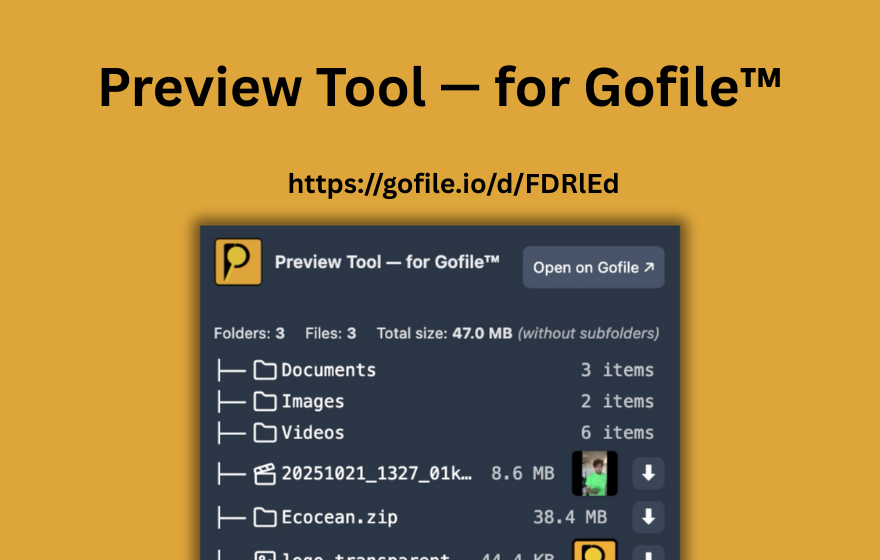
TL;DR: Gofile download speed depends on server load, your distance from the server, time of day, and whether you are on the free or premium tier. Free users may experience lower-priority bandwidth. The "traffic limit exceeded" error means a file has been downloaded too many times. To avoid wasting time on slow downloads, use PrevTool to preview Gofile links on hover - check file names, sizes, and folder structure before you download, and use Download All to grab every file at once.
1. Why is Gofile so slow? Common causes
Gofile speed is not a fixed number. It fluctuates based on several real-world factors, and understanding them helps you figure out whether the problem is on Gofile's side, your side, or somewhere in between.
Server load
Gofile hosts files across multiple servers. When a particular server is handling a large number of simultaneous downloads, the available bandwidth per user drops. This is especially common for popular files that many people are downloading at the same time. During peak hours, server congestion is the most frequent cause of slow Gofile downloads.
Geographic distance
The physical distance between you and the Gofile server storing your file matters. If the file is hosted on a server in Europe and you are downloading from Southeast Asia or South America, latency is higher and throughput is often lower. Gofile does not always let you choose which server region a file is stored on, so this can be a limiting factor outside your control.
Time of day
Download speeds tend to be worse during evening hours in busy regions (Europe, North America) when internet usage peaks. If you can schedule your downloads, early morning or late night in the file's server region often yields better speeds.
Your own internet connection
Before blaming Gofile, it is worth checking your own connection. Run a speed test to see if your download bandwidth is what you expect. Wi-Fi congestion, VPN overhead, or a slow plan can all cap your download speed regardless of what Gofile delivers.
3. "Traffic limit exceeded" - what it means and what to do
One of the most frustrating Gofile errors is "traffic limit exceeded". This is not a speed issue in the traditional sense - it means the file or folder has been downloaded so many times that Gofile has temporarily blocked further downloads to manage server resources.
Why does this happen?
When a Gofile link goes viral or gets shared on a busy forum, hundreds or thousands of people may try to download the same file within a short period. Gofile enforces traffic caps (especially on free uploads) to prevent any single file from consuming too much server bandwidth. Once the cap is reached, new download requests are blocked until the traffic window resets.
How to deal with it
- Wait and try later: traffic limits typically reset after a period of time. Trying again in a few hours or the next day often works.
- Ask the uploader to upgrade: if the uploader has a premium Gofile account, the traffic allowance is significantly higher, reducing the chance of hitting the limit.
- Check the link status first: this is where PrevTool helps. Hover the Gofile link to see if the folder is still accessible before you spend time trying to download.
4. Practical tips to improve Gofile download speed
While you cannot control Gofile's servers, there are several things you can do on your end to get the best possible Gofile speed.
Try downloading at off-peak times
If a download is slow, try again during off-peak hours. Early morning (UTC) or late night tends to have less server congestion and less competition for bandwidth.
Check your own connection
Run a speed test at fast.com or speedtest.net. If your connection is slower than expected, the bottleneck might not be Gofile. Try switching from Wi-Fi to a wired connection, or disconnect other devices consuming bandwidth.
Disable VPN or try a different server
VPNs add overhead and can route your traffic through slower paths. If you are using a VPN, try disabling it temporarily or switching to a server closer to the Gofile host. Some VPN servers are also flagged or throttled by hosting providers.
Use a download manager
Download managers like JDownloader or Free Download Manager can sometimes improve speeds by using multiple connections to the same file (when the server supports it). They also handle interrupted downloads better, automatically resuming where you left off.
Check for ISP throttling
Some internet service providers throttle traffic to specific file-hosting services. If Gofile is consistently slow while other downloads are fast, your ISP might be limiting bandwidth to Gofile servers. Trying a different DNS (like Cloudflare's 1.1.1.1 or Google's 8.8.8.8) or using a VPN (ironically) to bypass ISP-level throttling can sometimes help.
5. How PrevTool saves time when Gofile is slow
When download speeds are low, every unnecessary download is wasted time. This is exactly where PrevTool helps.
Preview before you download
PrevTool is a Chrome extension that lets you hover any Gofile link to see what is inside the folder: file names, file sizes, number of files, and folder structure. This means you can verify that a Gofile link contains what you actually want before committing to a potentially slow download. No more downloading a 2 GB archive only to discover it contains the wrong files.
Check file sizes upfront
When your connection to Gofile is slow, file size matters even more. PrevTool shows you the exact size of every file in the folder from the preview tooltip. You can prioritize smaller files, skip unnecessarily large ones, or decide whether a download is worth the wait on a slow connection.
Download All saves clicks and time
Instead of clicking each file individually - waiting for each slow download to start before triggering the next - PrevTool's Download All feature lets you trigger every file download in a Gofile folder at once. You get 3 free uses per day — unlimited with Premium. All downloads still go through Gofile's servers (PrevTool does not bypass any limits), but batching them saves significant time compared to the manual one-by-one approach.
Spot dead links instantly
On a slow connection, waiting for a Gofile page to load only to find the link is dead or the file has been removed is frustrating. PrevTool shows you the link status on hover, so you can skip broken or expired links without opening them.
PrevTool does not bypass Gofile speed limits, traffic caps, or any server-side restrictions. It helps you work smarter with slow connections by previewing content first and batching downloads - so you spend your limited bandwidth on the right files.
Key facts: Gofile speed at a glance
- Gofile download speed varies based on server load, geographic distance, time of day, and account tier (free vs premium).
- Free tier users may experience bandwidth throttling and lower-priority access during peak times.
- Premium tier offers higher bandwidth allocation and priority server access for faster downloads.
- "Traffic limit exceeded" means a file has been downloaded too many times; wait and try later, or ask the uploader to use a premium account.
- ISP throttling can also cause slow Gofile speeds; try changing DNS or using/disabling a VPN.
- Practical tips: download at off-peak times, check your own connection, use a download manager, switch from Wi-Fi to wired.
- PrevTool helps by letting you preview Gofile links on hover (check files and sizes before downloading), spot dead links instantly, and use Download All to batch-trigger all downloads in a folder.
6. Stop wasting time on slow downloads - preview first
Gofile download speed depends on factors you often cannot control. But you can control which files you choose to download. Install PrevTool to preview Gofile links on hover, check file sizes before committing, and use Download All to grab everything in one click.
Spend your bandwidth on the files you actually want.
Disclaimer: PrevTool is independent and not affiliated with Gofile. Always follow Gofile's terms of service, and only share or download content you are allowed to access.